Transaction Item Summary Report
The Transaction Item Summary report allows users to view a summary of all items and settlements made to guest accounts.
Perform the following steps to generate the report:
Navigate to Reports ➜ Dynamic Reports ➜ Accounting ➜ Transaction Item Details report.
Refer to the following table and fill in the fields.
|
Field |
Description |
|---|---|
|
Report Name |
Tax Postings. |
|
Start Date |
The start date for report generation. This is a mandatory field that displays the current property date by default. Users can select past or future dates. |
|
End Date |
The end date for report generation. This is a mandatory field that displays the current property date by default. Users can select past or future dates. |
|
Category |
This is an optional multi-select drop-down list that allows users to select the categories associated with the items. |
|
Subcategory |
This is an optional multi-select drop-down list that allows users to select the subcategories associated with the items. |
|
Transaction Items |
This is an optional multi-select drop-down list that allows users to select the transaction items to be included in the report. |
|
Payment Methods |
This is an optional multi-select drop-down list that allows users to select the payment methods available at the property. |
|
Display Ledger Balances |
When selected the ledger balances are displayed in the report. |
|
Above Property Payment |
This is an optional multi-select drop-down list that allows users to select whether the above property payments should be included in the report. The following options are displayed:
|
Click Run to generate the report.
Click Save to save the report under User Favorites section.
Sample Report
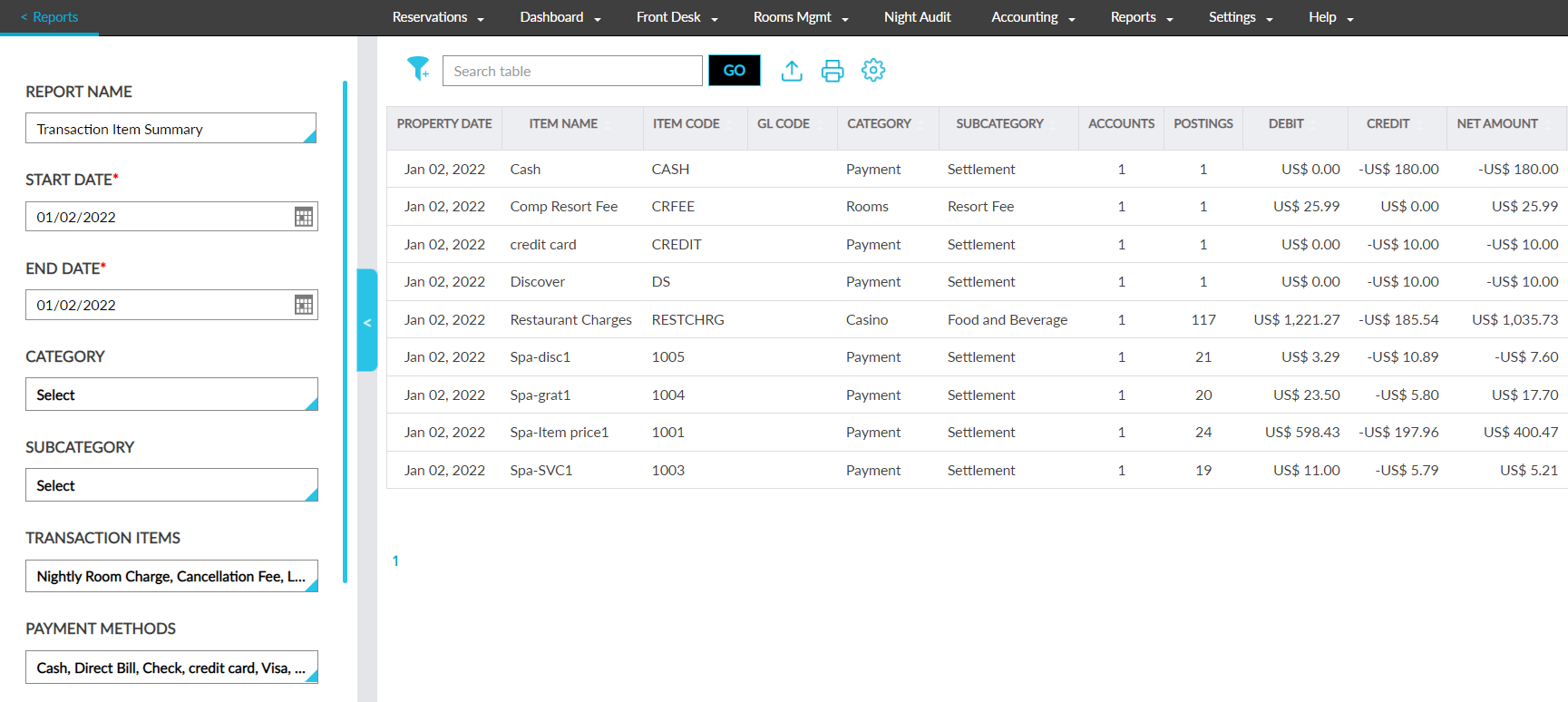
Report Fields
This report displays the following fields:
|
Field |
Description |
|---|---|
|
Item Name |
The item posted to the account. This column can be filtered and sorted. |
|
Property Date |
Displays each date in the selected date range. This column can be sorted. |
|
Item Code |
The code of the item posted. This column can be filtered and sorted. |
|
Category |
The category associated with the item. This column can be filtered. |
|
Subcategory |
The subcategory associated with the item. This column can be filtered. |
|
Accounts |
The total number of accounts (group, reservation, A/R account and house account) to which the selected transaction item has been posted to. This column can be filtered. |
|
Postings |
The total number of times the selected transaction item has been posted to the accounts. This column can be filtered. |
|
GL Code |
The GL code of the item. This column can be filtered and sorted. |
|
Above Property Payment |
The above property payment made for the item. This column can be filtered and sorted. |
|
Debit |
The payment made for the item from the account. This column can be filtered and sorted. |
|
Credit |
The credit amount posted for the item. This column can be filtered and sorted. |
|
Net Amount |
The net amount for the posted item calculated as follows: Debit - Credit. This column can be filtered and sorted. |
|
Tax Amount |
The tax amount posted for the item. This column can be filtered and sorted. |
|
Gross Amount |
The gross amount for the posted item calculated as follows: Net Amount + Tax Amount. This column can be filtered and sorted. |
|
Room Revenue |
Indicates whether the item posted is marked as room revenue. This column can be filtered. |
|
System Configuration Only |
Indicates whether the posted item is marked as system configuration only. This column can be filtered. |
|
Allow Comp |
Indicated whether the posted item is marked as allow comp. This column can be filtered. |